
Skip to the content
Cropped TheCityCeleb logo, a stylized design highlighting celebrity culture and entertainment news.

TheCityCeleb

The Private Lives Of Public Figures

  • Home
  • Biography
    • Celebrities
      • Actors
      • Actresses
      • Musicians
    • Media Personalities
      • YouTubers
      • Influencers
      • Models
      • TV Personalities
    • Entertainers
      • Comedians
    • Entrepreneurs
      • Businessmen
      • Businesswomen
    • People
    • Public Figures
      • Footballers
      • Politicians
  • Submit Your Bio
  • Meet Our Team
  • News
    • Editorial
      • Stories
  • Contact Us
    • About Us
  • More

Home » Editorial » Parental Controls: How to Set Them Up on Every Device

Parental Controls: How to Set Them Up on Every Device

Parental Controls: How to Set Them Up on Every Device

February 15, 2026 • 3:58 pm 0 Posted By Kaptain Kush
  • Smartphones and Tablets: iPhone and iPad (Screen Time)
  • Android Phones and Tablets (Family Link)
  • Computers: Windows (Microsoft Family Safety)
  • Streaming Services: Netflix, YouTube, and More
  • Tablets Like Kindle Fire and Gaming Consoles
  • Practical Advice from Years in the Field
  • What People Ask

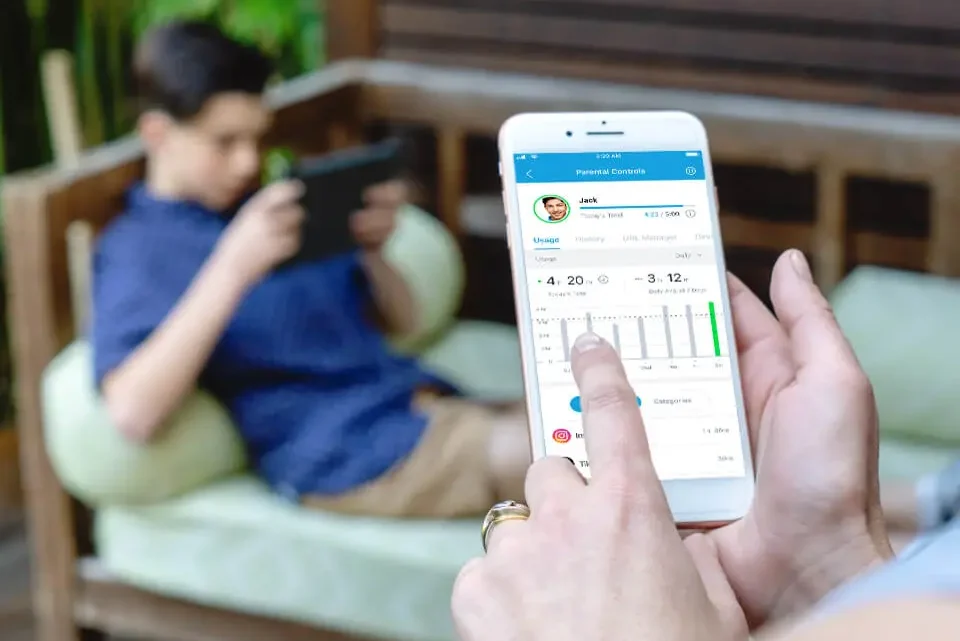
In the 15 years I’ve spent helping families navigate the digital world, first as a tech support specialist in schools and later as a consultant for parents overwhelmed by their kids’ screens, one truth stands out: setting up parental controls isn’t about locking everything down.

It’s about creating boundaries that evolve with your child, while preserving trust. I’ve seen families where rigid restrictions led to secret workarounds, and others where open conversations paired with thoughtful limits fostered responsibility. The goal is safety without surveillance overload.

Trending Now!!:
  1. Joey Bragg Biography: Girlfriend, Age, Net Worth, Height, Parents, Movies & TV Shows, Career
  2. DJ Daniel Biography: Age, Parents, Cancer, Net Worth, Secret Service, Height, Girlfriend
  3. Larry Gaaga Biography: Age, Songs, Wife, Net Worth, Family, Wikipedia, Pictures
  4. Jimmy Horn Jr. Biography: Girlfriend, Net Worth, Age, Height, Parents, Stats, Club
  5. Angel Karamoy’s sister Kezia Karamoy Biography: Siblings, Net Worth, Age, Parents, Height, Ethnicity, Kids, Husband, Films, Songs

The built-in tools on most devices have improved dramatically. Apple’s Screen Time on iOS and macOS, Google’s Family Link on Android, and Microsoft’s Family Safety on Windows often outperform third-party apps for basic needs, and they’re free.

Third-party options like Qustodio, Bark, or Aura shine when you need cross-platform monitoring or deeper alerts on social media risks. Start with what’s native to your household, then layer on extras if necessary.

Want Your Biography Online? Click To Chat Us On WhatsApp!!

Smartphones and Tablets: iPhone and iPad (Screen Time)

I once helped a mother whose 12-year-old son racked up hundreds in in-app purchases before bedtime. We set up Screen Time together, and it changed everything.

On an iPhone or iPad running recent iOS or iPadOS, go to Settings > Screen Time. Tap “Turn On Screen Time,” then “This is My Child’s Device.” Set a passcode different from the device one, parents only know.

Enable Downtime to block most apps during homework or sleep hours, allow exceptions like Phone or Messages.

Use App Limits for categories like games or social media, starting conservative, say one hour daily for social apps, then adjust based on real use. Under Content & Privacy Restrictions, block explicit content, require approval for app downloads, and prevent changes to privacy settings.

A common mistake: forgetting to enable “Share Across Devices” in Family Sharing. Add your child’s Apple ID to your family group first. One father I worked with skipped this, and his daughter’s limits reset every restart. Also, teach your child why these exist, not as punishment but protection. I’ve seen kids respect limits more when they help set them.

Android Phones and Tablets (Family Link)

For Android devices on recent versions, Google Family Link remains the go-to. Download the Family Link app on your phone, create or link your child’s supervised Google Account. On their device, install Family Link and follow prompts to connect.

You can set daily screen time limits, lock the device remotely, approve app downloads from the Play Store, and filter web content. Block specific apps or sites, and view activity reports showing time spent on YouTube or games.

One nuance from experience: Android’s flexibility means kids find VPNs or browser tweaks to bypass filters. Pair it with router-level controls. A teen I advised once used a workaround app to access restricted sites, until we added conversation about trust. Family Link notifies you of attempts to uninstall, but vigilance matters.

Computers: Windows (Microsoft Family Safety)

On Windows 11, open Settings > Accounts > Family & other users. Add a family member as a child account. Microsoft Family Safety app or website lets you set screen time, filter web content, block apps and games, and monitor activity.

Limits sync across Windows devices signed into the same Microsoft account. I’ve used this for families with shared home PCs. One pitfall: if kids have admin rights on older setups, they override everything. Always create standard child accounts.

For macOS Sequoia on a Mac, enable Screen Time similarly to iOS. Go to System Settings > Screen Time, turn it on for the child account. Set app limits, downtime, and content restrictions. macOS integrates tightly with iPhone mirroring now, so controls extend there too.

Streaming Services: Netflix, YouTube, and More

Kids bypass device limits by streaming. On Netflix, from the main account, go to Manage Profiles > create a Kids profile or set maturity ratings and PIN-protect mature content. I’ve seen families forget the PIN, leading to unrestricted viewing.

For YouTube, use Restricted Mode in the app settings, or better, supervised accounts via Family Link for Android or Screen Time on iOS. Block specific channels if needed. YouTube Kids app offers curated content for younger ones.

Similar steps apply to Disney+, Hulu, or Prime Video: create child profiles, set ratings, and require PINs for changes.

Tablets Like Kindle Fire and Gaming Consoles

Amazon Fire tablets push child profiles during setup. Use Amazon Kids+ for curated content, set time limits, and educational goals. Recent changes simplified profiles to child or adult, no teen option.

For consoles like PlayStation or Xbox, enable restrictions in settings: set age ratings, spending limits, and playtime. Nintendo Switch has similar family group tools.

Practical Advice from Years in the Field

Start simple. Over-restricting backfires; kids share passwords or use friends’ devices. Review reports weekly, discuss patterns openly. One family reduced arguments by negotiating limits together.

No tool is foolproof. Clever kids bypass filters. The real safeguard is ongoing dialogue. I’ve watched parents shift from “control” to “guidance,” and relationships strengthen.

If built-in options fall short, consider third-party apps for alerts on concerning messages or searches. But prioritize conversation over monitoring.

Setting up parental controls takes an afternoon, but maintaining them is ongoing parenting. Done right, they protect without alienating, helping kids build healthy digital habits for life.


What People Ask

What are parental controls and why should I use them?
Parental controls are built-in or added tools that let you limit screen time, block inappropriate content, restrict app downloads, and monitor activity on kids’ devices. From my experience, they work best not as a total lockdown but as guardrails that protect kids from risks like explicit material, excessive gaming, or surprise purchases while teaching self-regulation. Without them, young children especially can stumble into content they’re not ready for, and I’ve seen families regret waiting until a problem arises.
How do I set up parental controls on an iPhone or iPad?
Go to Settings > Screen Time on the child’s device, turn it on, and select “This is My Child’s Device.” Set a separate passcode only you know. Then enable Downtime for scheduled blocks like bedtime, add App Limits for categories like social media, and turn on Content & Privacy Restrictions to block explicit content or require approval for downloads. The biggest tip: set this up through Family Sharing so you can manage it from your own phone. One parent I helped forgot the passcode difference and had to reset the whole thing.
How do I set up parental controls on Android phones or tablets?
Use Google Family Link: download the app on your device, create or link a supervised Google Account for your child, then install Family Link on their device to connect. You can set daily screen time limits, approve apps from the Play Store, block specific apps, and filter web content. It notifies you if they try to remove it. A common issue is older kids finding workarounds like VPNs, so combine it with open talks about why the rules exist.
Can kids bypass parental controls?
Yes, determined kids often do, especially teens using VPNs, guest modes, factory resets, or friends’ devices. In my years working with families, no tool is 100% bypass-proof. The real defense is regular check-ins, reviewing activity reports together, and building trust so they come to you about online issues rather than hiding them. Overly strict controls without explanation tend to encourage more sneaking around.
How do I set parental controls on Netflix?
From your main account, go to Manage Profiles, create or edit a Kids profile with age-appropriate maturity ratings, or set PIN protection for mature content on any profile. Lock changes with a PIN. This prevents accidental or intentional viewing of adult shows. Families often overlook profile-specific settings, leading to kids switching to the main account late at night.
What parental controls work best for YouTube?
For younger kids, use YouTube Kids with curated content. For older ones, enable Restricted Mode in the YouTube app settings to filter mature videos, or link through Family Link/Google Family for supervised accounts where you can block channels and see watch history. Restricted Mode isn’t perfect and can miss things, so pair it with conversations about what they watch and why certain content isn’t suitable.
How do I limit screen time on Windows computers?
Use Microsoft Family Safety: add your child as a family member in Settings > Accounts > Family & other users with a child account. Then in the Family Safety app or website, set screen time limits, web filters, app blocks, and activity reports that sync across Windows devices. A frequent mistake is giving kids admin rights on the PC, which lets them change or disable everything, so always use standard child accounts.
Are built-in parental controls enough, or do I need third-party apps?
Built-in options like Screen Time, Family Link, and Microsoft Family Safety cover basics well for most families and are free with good integration. Third-party apps like Qustodio or Bark add extras such as social media alerts or keyword monitoring. Start with native tools; add paid ones only if you need deeper insights, like text scanning for bullying risks. In practice, over-monitoring can erode trust faster than it helps.
How do I handle parental controls as my child gets older?
Adjust gradually: tighter limits for younger kids, more flexibility for teens with earned privileges. Review weekly reports together and negotiate changes based on responsibility shown. I’ve seen the smoothest transitions when parents explain evolving rules as trust-building rather than punishment. By high school, many families shift to minimal restrictions focused on safety rather than time.
What should I do if my child asks why we have parental controls?
Be honest and age-appropriate: explain it’s about protection from online dangers like predators, inappropriate content, or addictive habits, not distrust. Frame it as helping them develop healthy habits. Involving them in setting some limits, like choosing Downtime hours, increases buy-in. Families that discuss openly have fewer battles and stronger relationships.
Do parental controls work on gaming consoles like PlayStation or Xbox?
Yes, both have family settings: on PlayStation, set age ratings, spending limits, and communication restrictions; on Xbox, use Microsoft Family Safety for similar controls including playtime limits. Link to your family group for cross-device syncing. Many parents forget consoles are full internet devices and skip these, letting kids bypass phone limits by gaming late.

CLICK HERE TO LEAVE A COMMENT

Check Out MoreEditorial
PEOPLE Also ViewApp Limits Block Inappropriate Content Child Account Setup Content Restrictions Device Parental Controls Downtime Settings Family Link Internet Safety For Kids Kids Online Safety Microsoft Family Safety Parental Controls Screen Time Management Screen Time Setup Streaming Parental Controls YouTube Restricted Mode
Joaquín Berthold Biography: Parents, Age, Height, Net Worth, Spouse, Children, Movies & TV Shows

Leave a Reply Cancel reply

We Value Your Feedback! Please ensure that your comment is respectful and relevant to the topic. Any inappropriate or spammy content will be removed. You can also provide links to helpful resources, but please avoid sharing unrelated links. Thank you for contributing to the conversation!


TheCityCeleb™ © 2020 - 2026. All Rights Reserved.

About Us • Editorial Standards • ToS • Contact

★Recently Viewed