How to Fix the WordPress Block Editor Text Style After the Latest Update
A recent WordPress core update silently activated a typography setting that changed how text appears inside the Gutenberg block editor. Here is what triggered it, why it disrupted publishing workflows across thousands of sites, and how to reverse it in under 30 seconds.
If you opened your WordPress block editor recently and found that your text looked completely different inside the writing area, you are not alone.
Thousands of WordPress site owners and content creators reported the same jarring shift after a recent core update pushed a previously optional setting live by default.
Trending Now!!:
Fonts changed, headings ballooned, and the familiar Gutenberg editor workspace became visually cluttered, all without any user action.
The good news: the fix takes under 30 seconds and requires no plugins, no code, and no theme modifications.
What Changed in the WordPress Block Editor
The update quietly activated a feature called Use Theme Styles within the Gutenberg editor’s Appearance preferences.
This setting instructs the block editor to load your active theme’s front-end typography directly into the writing environment. The intent behind it was to give content creators a more accurate preview of how their posts would look when published.




In practice, it created a frustrating WordPress editor experience for the majority of users. Themes built with large display fonts, custom heading weights, or non-standard body fonts are designed for readers visiting your live site, not for you inside a drafting environment. When those styles bled into the WordPress content editor, writing became harder, formatting decisions became unreliable, and the clean workspace Gutenberg users relied on was gone.
This is not a bug. It is a configuration issue introduced by a default setting change, and it has a straightforward resolution.
How to Fix It: Disable Use Theme Styles in WordPress Editor Preferences
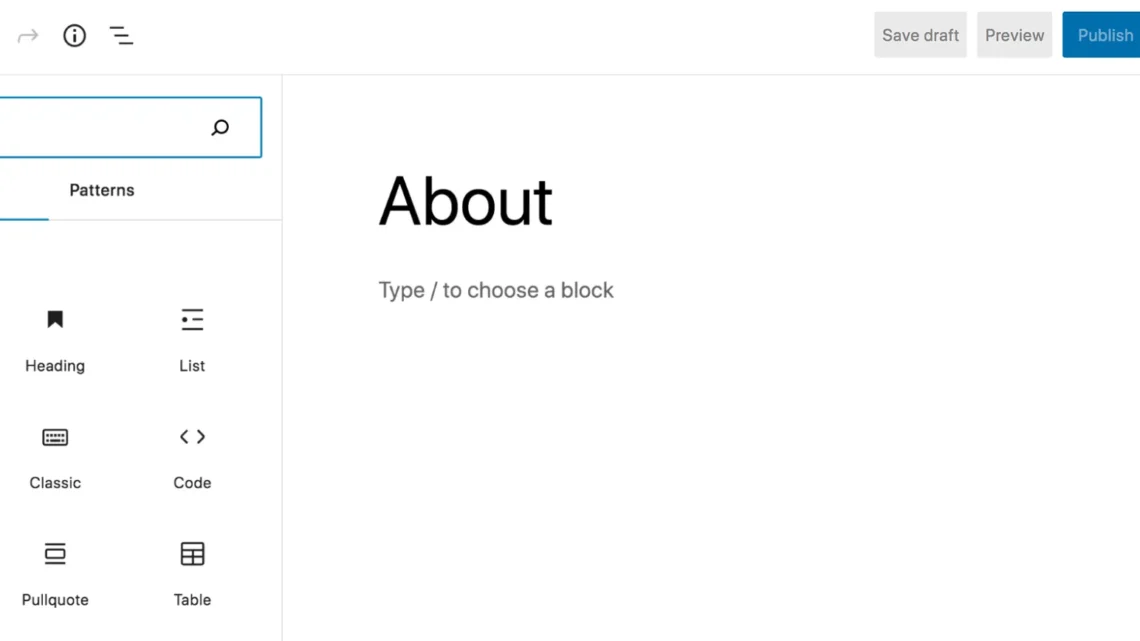
Follow these steps inside any post or page using the Gutenberg block editor:
- Open a post or page in the WordPress admin block editor
- Locate the three-dot menu (⋮) at the top right of the editor toolbar
- Click Preferences from the dropdown options
- Select the Appearance tab inside the Preferences modal
- Find the Use Theme Styles toggle and switch it off
Your editor resets immediately. No save required, no page reload. The writing environment returns to its default neutral typography, and you can resume editing with a clean, readable workspace.
Why Use Theme Styles Causes Problems for Most WordPress Users
WordPress full-site editing and block-based themes are designed around the idea that what you see in the editor matches what visitors see on the front end. For users working with modern FSE themes like Twenty Twenty-Four or Twenty Twenty-Five, this setting makes sense and works well.
However, the WordPress ecosystem is enormous. Millions of sites run on classic themes, page-builder hybrids, or heavily customized setups where front-end typography was chosen specifically for aesthetic impact, not readability inside a text editor. When Use Theme Styles is toggled on in those environments, the Gutenberg editor inherits fonts and sizes built for hero sections and landing pages, not longform writing or article drafting.
For bloggers, journalists, content marketers, and anyone publishing high volumes of written content, a disrupted editing environment is a direct hit to productivity. Disabling the setting does not remove your theme’s styling from the published site. It only separates the back-end editor experience from the front-end design, which is exactly the separation most WordPress users need.
Does Turning Off Use Theme Styles Affect SEO or Published Content?
No. This is strictly a WordPress editor appearance setting. It controls how the writing environment renders for the author, not how the published post renders for readers or search engines. Your on-page SEO, structured data, heading hierarchy, font choices, and overall site design remain completely unchanged on the live site.
Google does not crawl your WordPress admin. What it indexes is your published HTML output, which is driven by your theme and any SEO plugins you have configured, not by how your editor screen looks.
When to Leave Use Theme Styles Enabled
If you are building or managing a WordPress site using a block theme and rely on the editor as a real-time design preview tool, keeping Use Theme Styles on can be genuinely useful. It gives you an accurate representation of typography, spacing, and layout as you create content, which reduces the back-and-forth between draft and live preview.
For those users, the setting is an asset. For everyone else, especially those prioritizing a clean WordPress writing experience, turning it off is the right call.
A Setting Worth Knowing
WordPress editor preferences are underexplored by most site owners. Beyond the Appearance tab where this fix lives, the Preferences panel also gives you control over panel defaults, spotlight mode, fullscreen editing, and block toolbar behavior.
Taking a few minutes to review these settings after any major WordPress core update is a simple habit that prevents the kind of confusion this change caused for so many users.
The block editor continues to evolve rapidly. Understanding where its configuration lives means you stay in control of your publishing environment regardless of what future updates change by default.


I was going crazy after the recent WP update, wondering if I should go to edit the phps to get my old font style on Gutenberg editor intact. This simple setting change helped! Thank you
I’m glad we helped.